Teltonika moved to HTTPS-only. Here’s what that means for SMS alarming in Niagara.

3 min read
publisher
By Michael
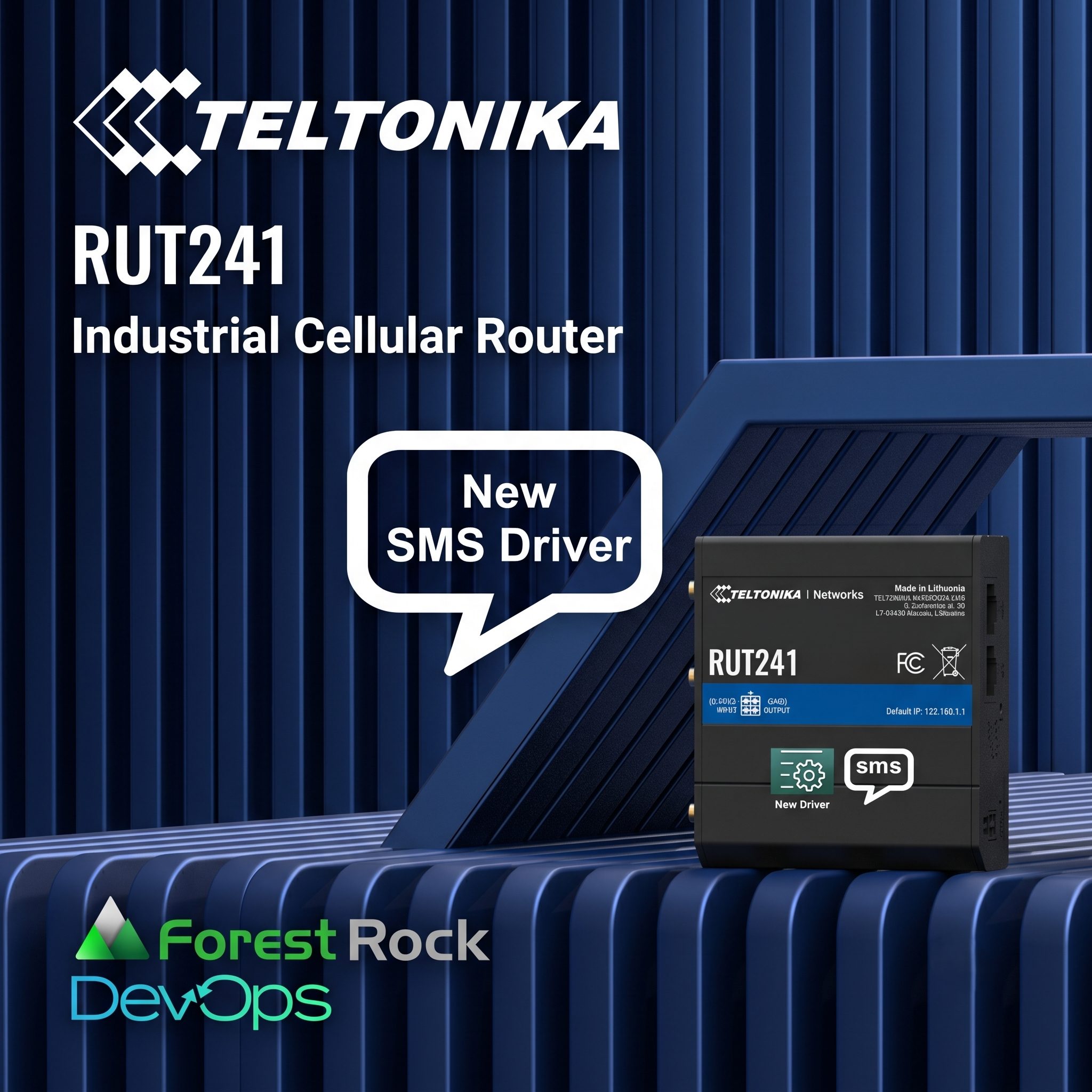
RUT241 Teltonika New SMS Driver

A practical update: the new Forest Rock TeltonikaSMS driver

Teltonika’s router firmware changes introduced a hard break: older, non‑TLS API calls are no longer supported on some builds. If your Niagara station relies on SMS alarming through a Teltonika router, the driver needs to speak the new language.

Our updated TeltonikaSMS module now uses a REST API over HTTPS and includes a clear workflow for certificate approval.

What changed (and why it matters)

Historically, the TeltonikaSMS driver used an older API for core functions such as:

  • Determining the router’s modem ID
  • Sending SMS messages

Teltonika has now withdrawn that API in favour of a modern, secure approach:

  • REST-based API
  • HTTPS only (no HTTP)

The practical impact is simple: if you upgrade firmware without updating your driver, SMS features can stop working.

Important (driver release / modules): Some customers will still have an older driver on their PC and may simply transfer modules to a JACE via Software Manager. If you’re moving onto the latest RUT firmware, make sure you also install the latest SMS driver modules (i.e., the latest driver release), not an older module set.

Compatibility (current supported versions)

This release applies to Teltonika RUT241 with the following firmware builds:

  • RUT2M_R_00.07.14.3_WEBUI.bin (earliest we support, due to TLS)
  • RUT2M_R_00.07.19.4_WEBUI.bin
  • RUT2M_R_00.07.23.4_WEBUI.bin (latest, not yet marked stable by Teltonika)

It is compatible with:

  • Niagara 4.10.1 (Workbench + daemon)
  • Niagara 4.15.1 (Workbench + daemon)

The new TLS certificate step (first use only)

Because communication is now HTTPS, the router presents a signed certificate. The driver will not automatically trust certificates.

On first setup you should expect:

  • Service status shows DOWN
  • Workbench indicates certificate approval is required

To resolve:

  1. Go to Workbench → Certificate Management

  2. Approve the Teltonika certificate

  3. Restart the station

After restart:

  • Service status should be OK
  • In Service Health, Is Certificated should read true

Setup overview (for field teams)

At a high level:

  1. Copy teltonikaSMS-rt.jar to C:/Niagara/Niagara-4.X/modules

  2. Restart Workbench

  3. Deploy the module to the host via Software Manager

  4. Restart the station (Application Director)

  5. Add TeltonikaSMSService under Config → Services

  6. Enter IP address, username, password (protocol and port are fixed: HTTPS / 443)

  7. Approve the certificate (first run), then restart

  8. Add SMSAlarmRecipient where needed and test

Troubleshooting: the two fields to check first

If SMS delivery fails, start with Service Health:

  • Is Certificated (certificate trust status)
  • Certificate Diagnosis (why the TLS handshake failed)

Click here if you need the step-by-step guide and the full troubleshooting section.

If you’re planning a fleet firmware update and want to avoid site call-backs, it’s worth checking compatibility first.

publisher

Michael

Michael Kirkland is the CEO of The Mountain IoT Group and founder of Forest Rock, which he launched in 2010 with a vision to connect businesses to their buildings and systems through cutting-edge technology. With a background in software engineering, Michael has built a career in energy management, building automation, and IoT. He’s passionate about creating innovative products, leading a talented team, and building a company culture where people enjoy coming to work.