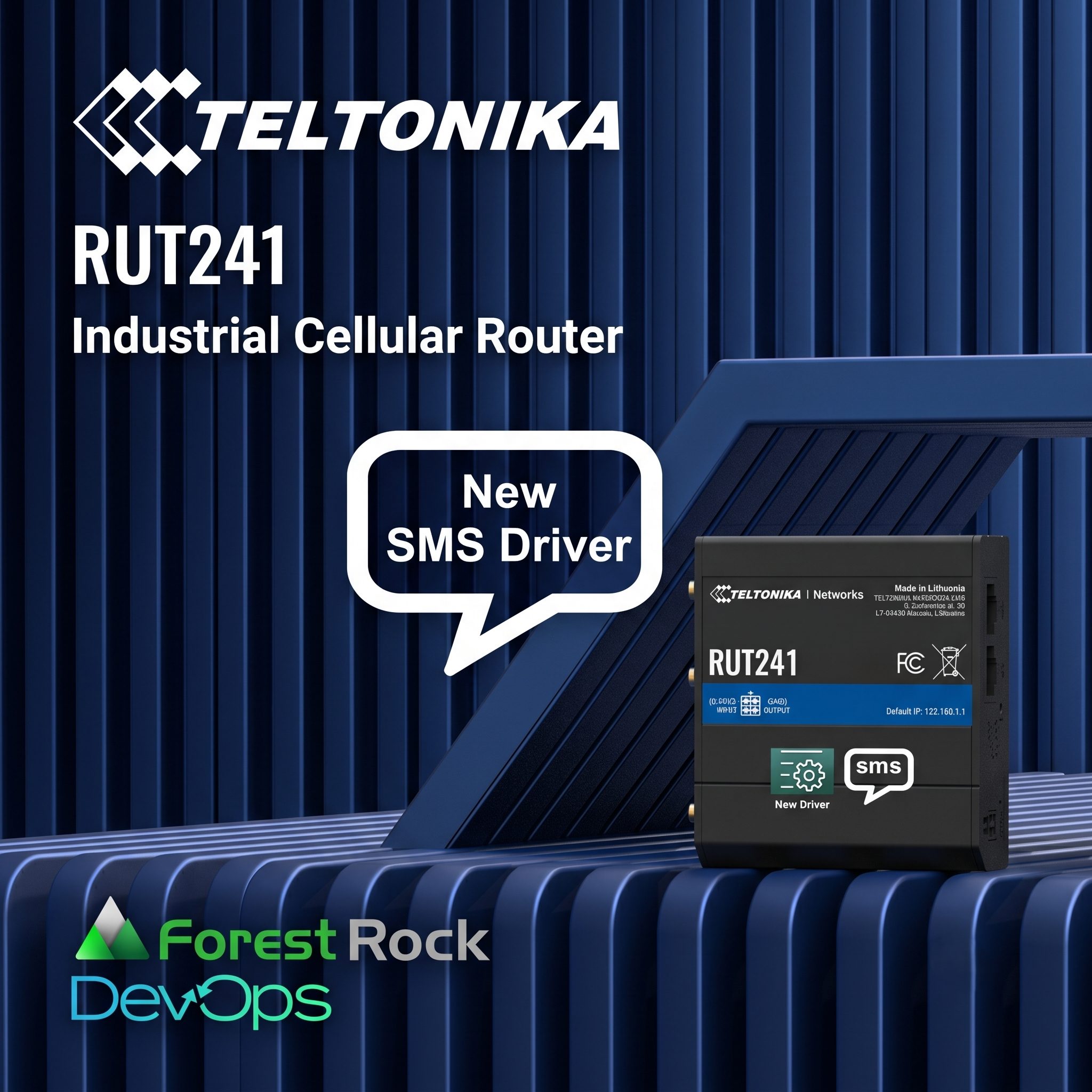
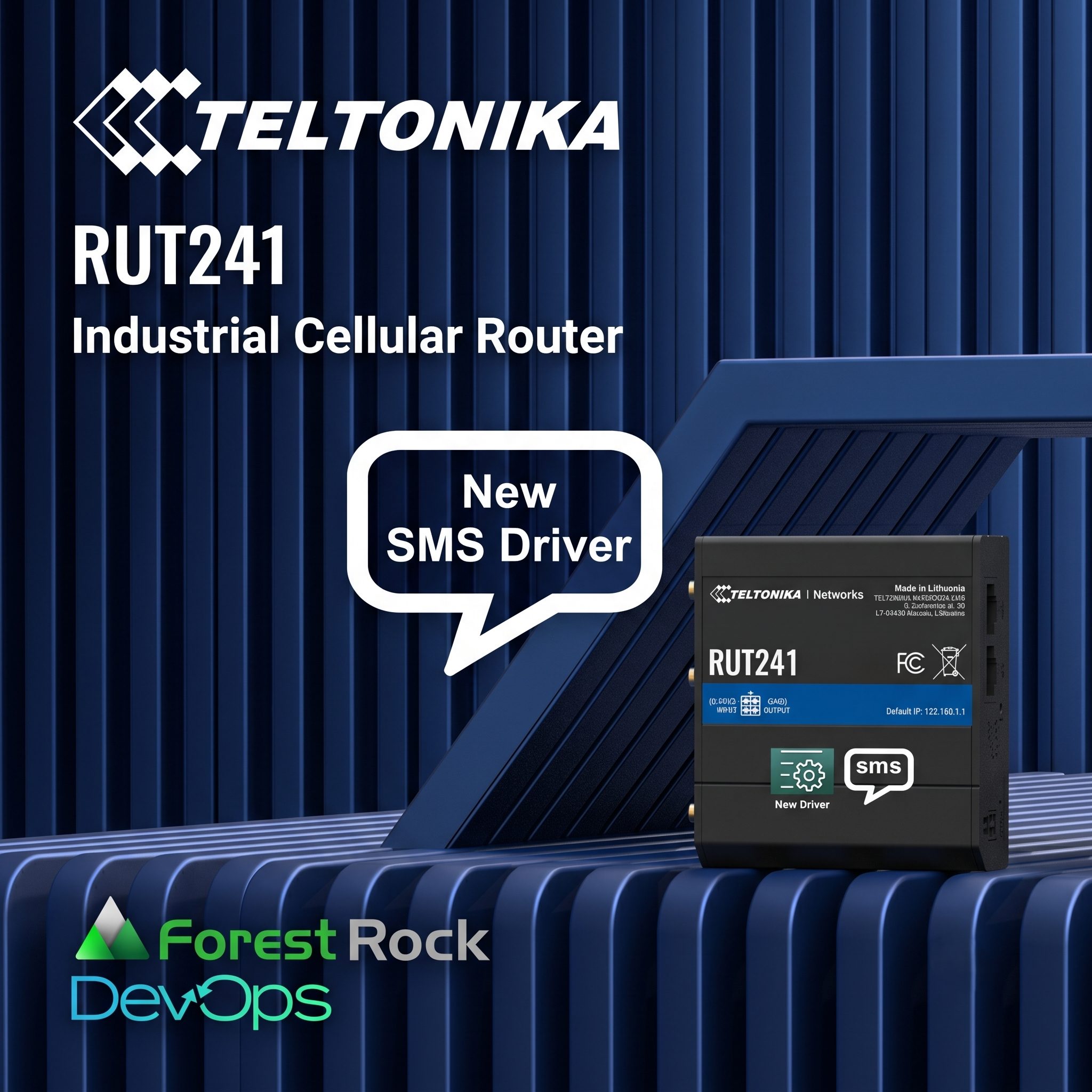
Teltonika’s router firmware changes introduced a hard break: older, non‑TLS API calls are no longer supported on some builds. If your Niagara station relies on SMS alarming through a Teltonika router, the driver needs to speak the new language.
Our updated TeltonikaSMS module now uses a REST API over HTTPS and includes a clear workflow for certificate approval.
What changed (and why it matters)
Historically, the TeltonikaSMS driver used an older API for core functions such as:
- Determining the router’s modem ID
- Sending SMS messages
Teltonika has now withdrawn that API in favour of a modern, secure approach:
- REST-based API
- HTTPS only (no HTTP)
The practical impact is simple: if you upgrade firmware without updating your driver, SMS features can stop working.
Compatibility (current supported versions)
This release applies to Teltonika RUT241 with the following firmware builds:
- RUT2M_R_00.07.14.3_WEBUI.bin (earliest we support, due to TLS)
- RUT2M_R_00.07.19.4_WEBUI.bin
- RUT2M_R_00.07.23.4_WEBUI.bin (latest, not yet marked stable by Teltonika)
It is compatible with:
- Niagara 4.10.1 (Workbench + daemon)
- Niagara 4.15.1 (Workbench + daemon)
The new TLS certificate step (first use only)
Because communication is now HTTPS, the router presents a signed certificate. The driver will not automatically trust certificates.
On first setup you should expect:
- Service status shows DOWN
- Workbench indicates certificate approval is required
To resolve:
-
Go to Workbench → Certificate Management
-
Approve the Teltonika certificate
-
Restart the station
After restart:
- Service status should be OK
- In Service Health,
Is Certificated should read true
Setup overview (for field teams)
At a high level:
-
Copy teltonikaSMS-rt.jar to C:/Niagara/Niagara-4.X/modules
-
Restart Workbench
-
Deploy the module to the host via Software Manager
-
Restart the station (Application Director)
-
Add TeltonikaSMSService under Config → Services
-
Enter IP address, username, password (protocol and port are fixed: HTTPS / 443)
-
Approve the certificate (first run), then restart
-
Add SMSAlarmRecipient where needed and test
Troubleshooting: the two fields to check first
If SMS delivery fails, start with Service Health:
Is Certificated (certificate trust status)Certificate Diagnosis (why the TLS handshake failed)
If you need the step-by-step guide and the full troubleshooting section, it’s here:
Customer Knowledge Base – New Forest Rock Teltonika SMS Driver
If you’re planning a fleet firmware update and want to avoid site call-backs, it’s worth checking compatibility first.


 Jul 01, 2026
 2 min read